
My hatred of Windows Vista continued when my wife (then girlfriend) bought a computer for school that came preloaded with Vista; it was just a cheap barebones computer, and Vista on this computer was horrible. It would take several minutes to load at startup, and much to long to open new application. I put extra RAM in it, but it didn’t help; ultimately, we paid an extra 200 bucks to buy a Windows XP license and downgrade.
I know many people have used Vista and see nothing wrong in it; the reason is because they have computers that were built for Vista; the problem is many cheaper computers simply never had the resources for it.
I decided to Beta test Windows 7 on my netbook to see if my Windows Vista woes would continue to a new platform; to my surprise, they won’t. Windows 7 ran smoothly on my cheap, lightweight netbook—more stable in many respects, in fact, then Windows XP.
It’s so stable that even in its beta release, I can say that this is the version that every office in America will likely adopt eventually; many IT people held back upgrading their systems to Vista because of its performance—I don’t foresee that happening with Windows 7.
Below I’m going to give a detailed review of what to expect (and not expect) with Windows 7.
What to Expect (Features Added to Windows 7)
Aero Shake
Aero Shake is an action that lets you clean up opened windows. If you want all windows minimize except for the one they are working in, then all you have to do is shake the window you wish to remain open; when you want other windows restored, you shake the window again.
Calculator
At first glance the Calculator that is on Windows 7 is the same one that’s been there since Windows 3.11 (released over fifteen years ago in 1992). Windows 7, however, has added to the Standard and Scientific modes, a Programmer and Statistics mode. Additionally the Calculator can do unit conversion.
Also on the calculator (except when in standard mode), is the ability to see the history of calculations. Windows Vista users are also said to be able to download and run the Calculator on their computer.
|
| From Windows 7 Screenshots |
.JPG)
.JPG) |
| From Windows 7 Screenshots |
.JPG) |
| From Windows 7 Screenshots |
Control Panel
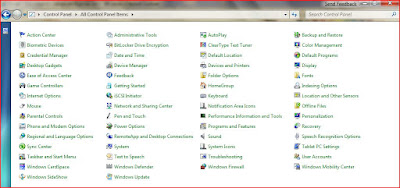
While the Control Panel has the similar visual interface as Vista, some features have been added, while other features have been renamed. Added or renamed items are as follows:
Action Center
Biometric Devices
ClearType
Credential Manager
Display
Display Color Calibration Wizard
Gadgets
Location and Other Sensors
Recovery
System Icons
Troubleshooting
Windows Action Center (formerly Windows Security Center)
Workspaces Center
 |
| From Windows 7 Screenshots |
The desktop has the same basic look that it has had since Windows 95. One key feature is the ability to set up a slideshow for the desktop wallpaper/background. Users now have the ability to have several background images on their desktop that rotates at a set time.
 |
| From Windows 7 Screenshots |
Fonts
The collection of fonts a user has installed on the computer can be previewed in Windows Explorer (just as it can in Windows Vista). Windows 7, however, has taken some steps to better manage the fonts. Fonts, for instance, in the same family or group, appear as stacks instead of individual icons; if you wish to see the fonts in that family then you just double click.
 |
| From Windows 7 Screenshots |
Games
The only game that is noticeably absent from Windows 7 is InkBall; while no major games were added, there are three new online versions of Spades, Backgammon and Checkers.
If you have not used Vista, you will notice a change in the overall look of all the games (including the popular FreeCell, Minesweeper, and Hearts), but these changes were made in Vista—not Windows 7.
.JPG) |
| From Windows 7 Screenshots |
.JPG) |
| From Windows 7 Screenshots |
.JPG) |
| From Windows 7 Screenshots |
The most significant improvement in networking to Windows 7 is HomeGroups. HomeGroups help you share both devices and media files over a home network.
When users set up a HomeGroup, Windows generates a random passkey that the user most input on each computer that they want to add HomeGroup to. This helps stop hackers who have broken into your wireless connection from being able to access shared files and devices on your network.
 |
| From Windows 7 Screenshots |
Office 2007 featured a facelift that was hit and miss with many users; some found it confusing and wanted the old version back, while others found it easier to use. The biggest change was the introduction of the “Ribbon” interface, which replaced the drop-down menus and toolbar found in original Office products and other Microsoft software.
The Ribbon is a large panel housed where the toolbar used to belong; this panel has various commands and icons, and organizes these commands and icons in a set of tabs; the tabs help group each function.
What does Ribbon have to do with Windows 7? Microsoft has used this same interface to give a similar facelift to Paint and WordPad (two products that, like Calculator, have gone virtually unchanged since they were first introduced).
WordPad
WordPad is a more advance version of Notepad, but not nearly as sophisticated as Microsoft Word. The change is not as radical as the Ribbon found in other Office Products; there are only two tabs “Home” and “View.”
The change will probably not annoy even people who can’t stand the Ribbon on other Office products, because it’s a stripped down version of the Ribbon. Aside from the look of WordPad, the features remain the same. It does make the ability to email documents easier, and provides integration with Paint
 |
| From Windows 7 Screenshots |
 |
| From Windows 7 Screenshots |
Microsoft made a small attempt at making Paint a stronger picture editor with the new version of paint. Unlike previous versions, it is easier to resize and crop pictures. Also added to the new version of Paint is different brush styles; along with the classic brush styles (normal brush, air brush, and pencil), there are two calligraphic brushes, an oil brush, a crayon brush, a highlighter brush, and a watercolor brush.
Paint also features a stripped down version of the Ribbon, and has tabs for “Home” and “View,” but nothing else. Also similar to WordPad is the ability to email pictures more easily.
 |
| From Windows 7 Screenshots |
 |
| From Windows 7 Screenshots |
Sticky Notes
Sticky notes is a small application found in the accessories area of the Start menu; it allows you to post small square yellow notes (or reminders) on the desktop.
Once a note is created, it is automatically saved; this means if you close it by accident, it will remember content and position of the note when relaunched. Sticky Notes first appeared as a gadget in Windows Vista.
 |
| From Windows 7 Screenshots |
The taskbar makes many visual changes in this edition of Windows. It is slightly taller then any taskbar that has come before (users do have the ability to reduce the size in the Windows setting). The taskbar is also transparent, a visual enhancement more than anything else.
Applications that are currently running on the computer are no longer seen as long bars that stretch several pixels across the taskbar. Instead they are small icons on the left hand side of the taskbar; because some applications on the taskbar are not running, Windows has a border and slightly darker color value to make running applications distinguishable.
 |
| From Windows 7 Screenshots |
The notification area (on the far right side of the taskbar) has also been redesigned, and the status icons are now called “Action.” The standard status (or Action) icons that have been present in previous versions of Windows (battery, network, security center, and volume) are still present. Absent, however, is all other status icons; these icons can only be displayed if the user sets it to do so.
A new “Notification Area Icons” has been added to replace “Customize Notification Icons,” which was found in the “Taskbar and Start Menu Properties.”
A small, triangle shaped, icon to the left of the notification box can be clicked to see hidden notification icons.
 |
| From Windows 7 Screenshots |
The “Show Desktop” icon, which, when clicked, minimizes all running programs to show the desktop, has been moved. In other versions of Windows, the icon has been on the left side of the taskbar in the Quick Launch bar. Windows 7 has moved this icon to the far right of the taskbar. It is now a skinny, rectangle, button to the right of the notification area.
The button works the same when clicked. The key difference in this version comes when the user only hovers over the icon; when this action is performed, all windows become transparent until the mouse is moved, and the windows are restored.
Pinned Applications
Quick Launch, which has been on the Windows taskbar for several versions, is once again integrated into the Windows 7 taskbar; Quick Launch is nothing more then a small toolbar on the taskbar (by default on the left side of the taskbar, to the right of the Start button) that has shortcuts to commonly used programs.
On operating systems prior to Windows 7, user had to manually drag and drop the programs on to the taskbar that they wanted to use on Quick Launch. In Windows 7 this step gets easier, as users can now pin commonly used programs to the toolbar; to pin an application to Quick Launch, users only need to open the program, and, when the icon for the program appears on the desktop, right-click it, and select pin to taskbar.
Preview Pan
In Windows Vista, users could hover the mouse over a minimized application that was on the taskbar, and they would see a small thumbnail size preview of the application; this option is also available in Windows 7, but users now can interact more with the preview box, but having the option of closing the program by clicking on the X in the upper corner of the preview box.
The point of the preview pane is clearly to reduce the amount of times a user has to click to get to the basic features of the application. If, for instance, the user is running music in Windows Media Player, they do not have to maximize the program to skip or stop tracks; or, in Internet Explorer, if the user has several individual tabs opened, each tab gets its own preview.
 |
| From Windows 7 Screenshots |
Each icon has its own unique “Jump List” when displayed on the taskbar. The Jump List comprise of key features contained in the running application, and can be seen by right-clicking on the application in the taskbar. For Excel, for instance, the Jump List might display recently opened documents, whereas, Windows Media Player might have recently displayed play lists, and Internet Explorer might show the history of the users Internet browsing.
 |
| From Windows 7 Screenshots |
The round start icon that first made an appearance in Windows Vista is once again in Windows 7. The biggest change in the menu is users are no longer able to view the menu in classic mode.
User Account Control
Users who commonly use Vista or familiar with it will probably share one complaint with the operating system: the constant security alerts asking the user if they are sure they want to install programs or download files. Microsoft has listened to these complaints, and implemented them in the User Account Control.
Under User Account Control, the user is offered four levels of protection: always notify, notify only when programs try to make changes (the default setting in Windows 7), notify when programs try to make changes but don’t dim the screen, and, finally, never notify.
 |
| From Windows 7 Screenshots |
A number of new or renamed features have been added to the Windows Action Center (formerly Windows Security Center). These include additional features in the touch, speech and handwriting recognition group; improved boot performance; and support for virtual hard disks.
Microsoft’s focus with the Action Center, as well as most of Windows 7, was simpler management. Action Center has clear labels that make it assessable to both beginning and intermediate users to properly configure the computer according to their needs; this includes setting up security, backing up the computer, and setting restore points for the computer to return to, should anything go wrong.
 |
| From Windows 7 Screenshots |
Windows Explorer
A key component of all Windows operating systems has been the Windows Explorer—the program that manages Windows files. The past several versions of Windows have taken aggressive steps towards making Explorer both easy to navigate and easy to search for files. As hard drives continue to increase in size, and users build larger and larger libraries of files (from documents to music, pictures, and videos), Microsoft is working hard to make find files in the users library easy.
Searching Explorer let’s users look not only at their own computer, but remote computers as well. Microsoft has clearly recognized that the average user often has more than one computer, and this is one step it’s taking to make managing both computers easy.
 |
| From Windows 7 Screenshots |
Windows Live Essentials
It’s important to point out here that Windows Live Essentials is not bundled with Windows 7, so extra installation is required; instead of being offered directly on the CD it is offered as a download from “Windows Live Downloads.” This lets the user pick and choose which features they want.
Many of these applications are already available for download and can be used on Vista and in some cases XP.
Windows Live Essentials Includes the following products:
Windows Live Family Safety - Similar to Vista's parental control, this program let's users set guidelines and restrictions for how their children surf the Internet.
Windows Live Mail - The successor of Windows XP's Outlook Express and Windows Vista's Windows Mail.
Windows Live Messenger - Formally MSN Messenger
Windows Live Movie Maker - Replaces the Windows Movie Maker that is found in Windows Vista.
Windows Live Photo Gallery - Replaces the Windows Photo Gallery found in Vista. Photo Gallery makes sharing photos easy; users are able to upload their pictures through the program to Windows Live Spaces and Flickr.
Windows Live Sync - This software lets users sync files between two or more computers (including XP and even Mac OS X computers)
Windows Live Toolbar - The successor to MSN Search Toolbar. It puts a simple search box on the users taskbar that lets the user search for documents, emails, photos, etc that are indexed on their computer.
Windows Live Writer - a desktop application that allows users to write and post blogs; it is currently compatible with several major blogging sites including: Blogger, LiveJournal, TypePad, Windows Live Spaces, and Wordpress.
What Not to Expect (Removed Features)
· Classic Start Menu - In Vista users who were not comfortable with the Start Menu had the ability to change it to a “Classic” menu that more closely resembled XP’s Start Menu; this option is not available in Windows 7
· InkBall (Game) · MyComputer on the Desktop – While the My Computer icon is not gone altogether, it is missing from the Desktop; only the recycle bin remains the same.
· Removable Storage Manager
· The Software Explorer feature of Windows Defender
· Windows Calendar, Mail, Movie Maker, Photo Gallery; each of these programs now fall under the windows Live Essential (this is talked about later in this book) and can be downloaded from the Microsoft Live website.
· Windows Sidebar - If the user wants to have Gadgets (small, single-purpose, applications that sit on the Windows desktop) on their desktop it is now integrated with the entire desktop, and does not need to lock into a Sidebar.
· Windows Meeting Space












 Posts
Posts


